Showing posts with label AzureGraphAPI. Show all posts

Saturday, 23 April 2022

Power Automate Convert SharePoint List Items to Modern Pages By Sabeeh

 Convert Bulk Custom list data to Modern Page using Power Automate

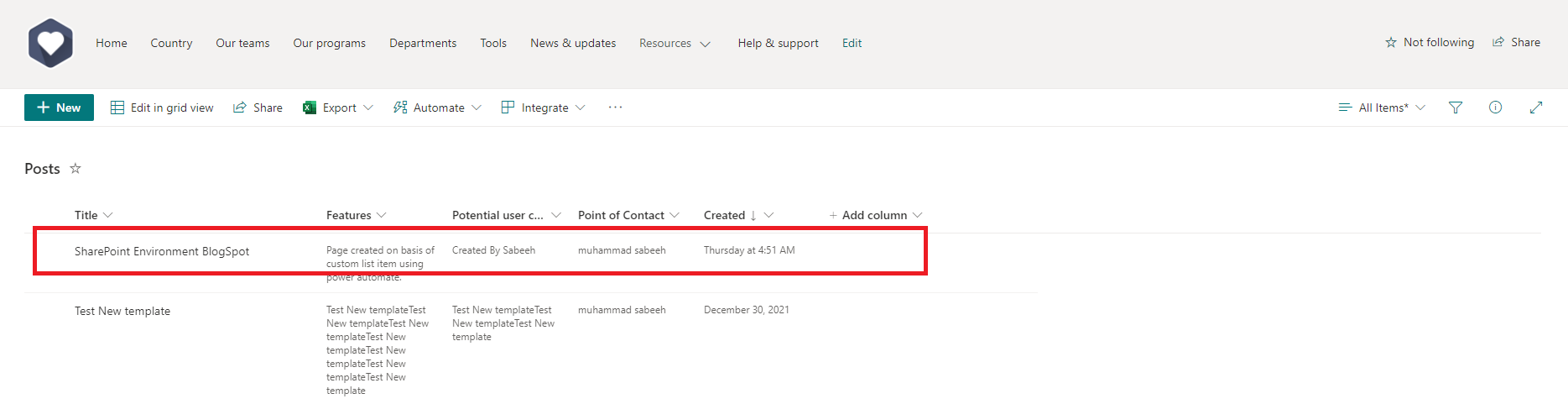
Automation to Create Modern Pages

Custom List Entry
Power Automate Created Page


Scenarios Problem:

1: Creating manual pages takes time, entry in custom list will save your time to create page.

2: Like if you migrated content from SharePoint on premises custom list to SharePoint online and you want to convert this list data to modern pages experience. So you are right article.

Perquisites:

Following are very basic steps as perquisites:

1: Create a list with desired columns so data can be converted to Modern page.

2: Create Page template in modern view

3: Create Power automate to get data from list and create Modern page as per page template.

Step 1: Create a Custom List

Columns depends on the data you want to map on Template I created Features, Potential user cases and Point of contact. List Name: Posts

SharePoint list fields

Step 2: Create a Template

Now create a new page in SitePages this page will be utilized as Benchmark to map list data. PageTemplate.aspx I have created.

Enter Placeholders using text editor so we can search these where list column should mapped. You can add as many you want I have added 3 only.

·         [**ListColumn 1**]

·         [**ListColumn 2**]

·         [**ListColumn 3**]

Final Look of Template PageTemplate.aspx:


Final Look of Template


When we edit the SharePoint page and publish a request sent in background. This request we can find in Network tab by following below points:

1.       Go to template page we created (PageTemplate.aspx)

2.       Press F12 for Developer tool

3.       Go to Network tab

4.       Edit this template page and publish it

5.       In Network call there will be a action SavePage like below

Developer tool to get Response


Step 3: Click on view source:

Right click here and click show more then copy the complete content.

Copy Page Response

Paste your content inside visual studio code and search for listcolumn we will use below content in Power automate to create new page and map content with listcolumn fields.

Visual studio code replace Column placeholder

Step 4: Create the Power Automate

  • Power Automate Action On Item Creation

Create a Power automate on top of custom SharePoint list we created at step 1 on item creation (Post List).

Power Automate Action

  • Copy Template.aspx as New Page:

Now we have to copy PageTemplate.aspx to use as new page. To create new page using template there is Rest endpoint call CopyTo. We will use custom list title as new page name in URI field like below.

/_api/web/getfilebyserverrelativeurl(‘/sites/SitePages/PageTemplate.aspx’)/copyto(‘/sites/SitePages/@{triggerBody()?[‘Title’]}.aspx’)

CopyTo Action to Create New Page

  • Checkout newly created Page:

After above action new page will be created in sitepages. But to modify we have to check out this page after making changes we will check in again. To achieve this we need Page ID there is action in power automate Get file metadata like below but make sure you replaced forward slash with %2f


Check Out newly created Page

Using get file metadata we have Page ID to check out the page we have to run another send an http request like below using CheckOutPage action:

_api/sitepages/pages(@{body(‘Get_file_metadata’)?[‘ItemId’]})/CheckOutPage         


Page Checkout action

  • Compose Action to Replace Spaces

Note: if you have multiline columns in custom list we created above there are chances of line breaks but json only understand </br> tag for line breaks. To convert line breaks to </br> we have to compose action and URI component. Our list is having 2 multi lines text columns so we have to use 2 Compose like below:

Compose 1:

uriComponentToString(replace(uriComponent(triggerBody()?[‘Features’]), ‘%0A’, ‘</br>’))

Compose 2:

uriComponentToString(replace(uriComponent(triggerBody()?[‘Potentialusercases’]), ‘%0A’, ‘</br>’))


Compose to remove spaces

  • Draft Page Action:

By creating 3rd HTTP request to SharePoint we can save page as draft using below URI:

_api/sitepages/pages(@{body(‘Get_file_metadata’)?[‘ItemId’]})/savepageasdraft

In this part we will add response by copying from visual studio or from Response body browser developer tool. Paste this response in Body of http request action and search ListColumn and Page title. Replace page title with title from When an item created action.

Paste Response From Visual studio or Developer Tool


Draft Page Call

Now search ListColumn and replace multiple columns with Compose outputs.

Features= outputs(‘Compose’)

Potential user cases = outputs(‘Compose_2’)

Point of contact = @{triggerOutputs()?['body/PointofContact/Email']} (from item creation action)


Following is final look after modifications:


  • Publish Page

Once done with changes create another http request to publish the page.
Publish Newly created page Action


Now just save your Power Automate and create new entry in SharePoint Custom list.

Summary Total Actions


Thank for reading this article I hope this helps you. if you stuck somewhere please feel free to reach me in comments or through email: SabeeSharif@gmail.com

#SharingIsCaring #SharePointEnvrionment #PowerPlatform #SharePointOnline #ProblemSolution #PowerPlatfromLearning #SharePointLearning


Friday, 16 August 2019

SharePoint On premises People Picker with Azure AD Graph Api

Search Users and Groups From Azure AD


Requirement:

We have to integrate our SharePoint on premises People Picker with Azure AD, so user can search users/groups coming from Azure AD.

Steps:


  1. Graph API
  2. Inherit web part with SPClaimsProvider class
  3. Call Graph API in FillSearchMethod
  4. Deployment

1: Graph API

To find Azure AD users, groups, All users/ groups etc we have to use Graph API provided by Microsoft. In simple language if developer requires to search something from Azure AD Graph Api full fill this requirements. To read more about available Graph APIs please visit Microsoft documentation.
URL Graph API Documentation: https://docs.microsoft.com/en-us/graph/use-the-api

Following APIs will be used to search users and groups from Azure AD for People Picker:
  • Create Authentication Token: https://login.microsoftonline.com/{TenantID}/oauth2/token
    Example: https://login.microsoftonline.com/2909k32e-b3db-4aad-86o4-n3f7b65t235h/oauth2/token
    Response in Postman:
  • Search User: 
    https://graph.microsoft.com/v1.0/users?$filter=displayName eq 'Derrick Ramirez'
    Response in Postman:
  • Search Group: 
    https://graph.microsoft.com/v1.0/groups/?$filter=startswith(displayName,'aa_azureapps')
    Response in Postman:

2: Inherit web part with SPClaimProvider class

  • Create a Empty web part using visual studio (Farm solution or Sandbox)
  • Inherit class like this public class ClaimProvider : SPClaimProvider
  • Implement this class just by right clicking on SPClaimProvider, it will generate multiple methods FillClaimsForEntity, FillResolve, FillEntityTypes, FillSearch for now we just have to add code in FillSearch Method protected override void FillSearch(Uri context, string[] entityTypes, string searchPattern, string hierarchyNodeID, int maxCount, SPProviderHierarchyTree searchTree) { //Call Graph API here }

3: Call Graph API in FillSearchMethod

  1. Customize FillSearch Method: Your FillSearch Method should look like this: protected override void FillSearch(Uri context, string[] entityTypes, string searchPattern, string hierarchyNodeID, int maxCount, SPProviderHierarchyTree searchTree) { try { string NameOfUserOrGroup = searchPattern.ToLower(); APIResponseObject usersgroups = new APIResponseObject(); usersgroups = SearchUsersGroupFromAzureAD(NameOfUserOrGroup, "SecretKey", "GraphApiUrl", "ClientId"); //Get these keys from Azure Portal // string claimType = GenerateClaimType.GetClaimType("Email"); foreach (var user in usersgroups.value) { PickerEntity entity = CreatePickerEntity(); //If its group name because Azure AD doesn't have UPN So if (user.userPrincipalName == null || user.userPrincipalName == "") { //entity.Claim = CreateClaimForSTS(claimType, user.displayName); entity.Description = user.displayName; entity.DisplayText = user.displayName; entity.EntityData[PeopleEditorEntityDataKeys.DisplayName] = user.displayName; entity.EntityType = SPClaimEntityTypes.SecurityGroup; } //else its user name else { //entity.Claim = CreateClaimForSTS(claimType, user.mail); entity.Description = user.mail; entity.DisplayText = user.displayName; entity.EntityData[PeopleEditorEntityDataKeys.DisplayName] = user.mail; entity.EntityType = SPClaimEntityTypes.User; entity.EntityType = SPClaimEntityTypes.FormsRole; } entity.IsResolved = true; searchTree.AddEntity(entity); } } catch (Exception ex) { } }
  2. Call Graph API Method
    Here you can call Graph API the way which suits you just like to call Rest API using C# webclient. Note: To Call Graph API first we have create token using /oauth2/token api. public RootObject SearchUsersGroupFromAzureAD(string SearchPattern, string ClientSecret, string GraphApiUrl, string ClientId) { try { var client = new WebClient(); byte[] byteArray = Encoding.ASCII.GetBytes(""); //Call this API https://graph.microsoft.com/v1.0/users?$filter=displayName eq 'Derrick Ramirez' string Url = "https://graph.microsoft.com/v1.0/users?$filter=displayName eq 'SearchPattern'"; var allAdUsers = client.DownloadData(new Uri(Url)); if(allAdUsers != null || allAdUsers !=""){ string encodeUsers = Encoding.ASCII.GetString(allAdUsers); JavaScriptSerializer serilizeObject = new JavaScriptSerializer(); RootObject Users = serilizeObject.Deserialize<RootObject>(encodeUsers); return Users;} else{ //Call this API https://graph.microsoft.com/v1.0/groups/?$filter=startswith(displayName,'aa_azureapps') string Url = "https://graph.microsoft.com/v1.0/groups/?$filter=startswith(displayName,'SearchPattern')"; var allAdUsers = client.DownloadData(new Uri(Url)); string encodeUsers = Encoding.ASCII.GetString(allAdUsers); JavaScriptSerializer serilizeObject = new JavaScriptSerializer(); RootObject Users = serilizeObject.Deserialize<RootObject>(encodeUsers); return Users; } } catch (Exception ex) { throw; } }
  3. Convert API response to Deserialize Object

public class Value { //public List<object> businessPhones { get; set; } public string displayName { get; set; } public string givenName { get; set; } public string jobTitle { get; set; } public string mail { get; set; } public string mobilePhone { get; set; } public string officeLocation { get; set; } public object preferredLanguage { get; set; } public string surname { get; set; } public string userPrincipalName { get; set; } public string id { get; set; } } public class RootObject { public List<Value> value { get; set; }

}
Deployment: Just add, install and enable this web part and enjoy to fetch Azure AD users and Groups. Unit Test:

After Deployment visit web application depends you have enabled this feature for farm level or specific web application then go to Site permissions and enter user email or group name. It will return you result from Azure AD. If you have any query feel free to comment, i will try my best to resolve on my earliest. Thanks
Search Users and Groups From Azure AD