Showing posts with label Types of user role in SharePoint 2013. Show all posts

Thursday, 26 January 2017

Final Year Project Ideas in SharePoint.

Don't worry by reading these names, things are very easy just study once. If you are looking for to select FYP you may develop any of this module using any technology. Like Content Management System, Business Workflows etc.

SharePoint Functionalities:


SharePoint is Combination of these given fields:
1: Content Management System
2: Business Workflows
3: Indexing and Search
4: Enterprise Integration & Collaboration
5: Business Intelligence
6: Portals


1: Content Management System:

SharePoint as Content Management System, CMS have these basic functionalities so you will get these all in SharePoint.

As per my this blog SharePoint As Document Management System i have explained regarding Document Management System but SharePoint not only save documents but also any kind of Content like pdf, Excel, images, HTML etc. So SharePoint is Content Management System. SharePoint have all these above functionalities create content of any type then measure quality, storage space etc then develop means save this content, optimize if created content is working efficiently or not. Deliver this content to production. Manage this content to control visibility or other operations like Create, Update or Delete Permissions. In future if you need to update this content you can do it easily.
You can also integrate workflows with these operations to perform specific task on specific conditions. 


Thanks for your time. If you will have any query feel free to comment here. Thanks

Tuesday, 24 January 2017

What you should know before Development of SharePoint?

Although Architecture for SharePoint to access list or file of Document Library define in this image:

but in code you have to access first site then Open web.
Get SharePoint List Using C# code:
In this tutorial we will learn how to get Document Library files by traversing SharePoint Architecture.
SharePoint Architecture to access any list:
SecurityPrevillages-> Site(ByProvidingURL) ->Web -> List (like DocumentLaibrary) -> Get Files under Document Library

Steps:
1: Create Console Application using C# etc then add this library "using Microsoft.SharePoint".
2: Get the path of site which library files you want access in your code like (string baseUrl = "http://sp2013:81/sites/sis/";)
3:  Security Check if you are running this utility on same server where SharePoint is deployed. Get Security check by adding this line SPSecurity.RunWithElevatedPrivileges(delegate() {  //YourCOde });
4: Then Get site where you want some changes or want to get something from existing applications like Document Library.
5: Get all uploaded documents on document library by passing library name as a parameter in   SPDocumentLibrary lib = (SPDocumentLibrary)web.Lists[LaibraryName];
6: using Lib.RootFolder to get all files existing in this folder.
This is Generic Function written in C# to access all documents from a specific Library:
public static bool getAllDocuments(String LaibraryName)
{
Console.WriteLine("getAllDocuments debug, START");
bool isOK = false;
string baseUrl = "http://sp2013:81/sites/sis/";
try
{
SPSecurity.RunWithElevatedPrivileges(delegate()
{
using (SPSite site = new SPSite(baseUrl))
{
using (SPWeb web = site.OpenWeb())
{
SPDocumentLibrary lib = (SPDocumentLibrary)web.Lists[LaibraryName]; //Get All documents with name
//SPDocumentLibrary lib = (SPDocumentLibrary)web.Lists["Client Incoming Correspondence"]; //Get All documents with name

IEnumerable<SPFile> allFiles = ExploreFolder(lib.RootFolder);
foreach (SPFile file in allFiles)
{
Console.WriteLine("getAllDocuments debug, File Name : " + file.GetType());
string filename = file.Name;
Console.WriteLine("getAllDocuments debug, File CharSetName : " + file.CharSetName);
Console.WriteLine("getAllDocuments debug, File SourceLeafName : " + file.Title);
string strFileExtension = new FileInfo(file.Name).Extension;
string strFileUrl = file.Url;
Console.WriteLine("strFileUrl : " + strFileUrl);

}

}
}
});
}
catch (Exception e)
{
Console.WriteLine("getAllDocuments debug, " + e.Message);
isOK = true;
}
Console.WriteLine("getAllDocuments debug, END");
return isOK;
}
By using this approach you can access any list. Thanks for reading this blog if you need any help feel free to comment here. Thanks


Tuesday, 1 April 2014

How to assign Roles in SharePoint 2013

Types of user role in SharePoint 2013:

Global administrator:

Role you get after signup in SharePoint 2013 have controlled to assign different roles to the user, can do any amendment in SharePoint portal. There can be more than one global administrators assigned by first global administrator.

Team site administrator:

Team site administrator have only concern with team site can use website designer tool to design the website.
team site administrator cannot remove the global administrator but global administrator can remove the team site administrator. They can add user to team site.

Site users:

Site users can edit their profiles cannot use website design tool. they have no access to administrator portion.

Admins by group:

Default Groups:

Here are the default groups that come with SharePoint Online for professionals. If there are too many users who have same roles assigned by admin rather than assign one by one assign to whole group.

How to assign roles and permissions in SharePoint 2013?

Step by Step:

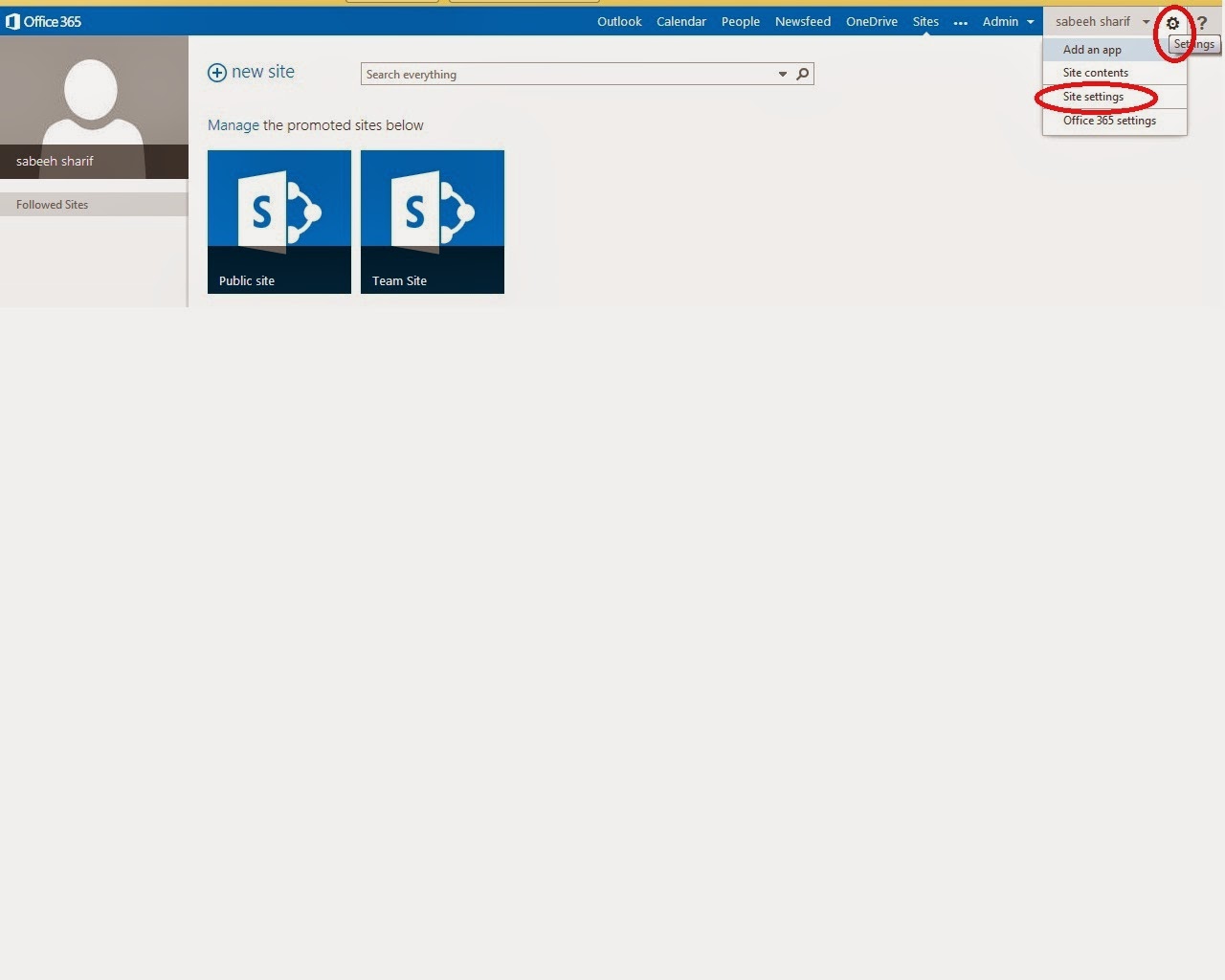
1: Site settings.
after clicking gear symbol then select site settings.

2: add people or make group

If you dont have already users or groups then follow this step else ignore.

3: Groups

Then click group on extreme left.

4: New group


5: Create group

After creating group you can add users in specific group.

6: Site settings

Now again select site settings to assign permissions.

7:Site permission


8: Select Group

select specific group then click edit user permission.

9: Edit Permissions

Here you can select which type of permissions you have to give to selected group. Select the permissions to assign to the group and clear the permissions you want to remove, and then choose ok


Individual level permissions:

1: Permission level:

If you like to apply permissions on individual user or group follow these steps. If you have no idea which permissions what functions can perform, you can edit it and examine it.


2: Editable default permission levels


3: Test Contribute

You can select any permission level, i have selected contribute. Now you can examine what functions can be performed by default contribute level. You can enable/disable a specific permission in each permission level.

Create New Permission level

If you want to create your own permissions level it is also possible in 2013 SharePoint.

1: New Permission level

Give any name to your new permission level. select the options you want in your level.